
Keyword Ideas, Citations, Build Events by Voice, a Settings Redesign, and More
Everything Baseline shipped between September 16 and October 5, 2026. The Marketing module gains a Keyword Ideas tab, local search volume on Local Traffic, a Citations scan with per-site listing builds, and ad journey charts that follow each click to a purchase, sign-up or lead. The AI Event Builder builds a whole schedule from one prompt or an attached spreadsheet and takes voice input, the event cloner creates every copy at once, and the Create Event builder, Team Builder and Users list each get a Customize button. Trainers edit their own trainer page, Settings is redesigned with grouped navigation and search, mobile app 1.6.0 rolls out, and dozens of fixes land.

Our last update was Local Search, Grid Colors, Itemized Invoices, and More. This one covers everything that shipped between September 16 and October 5, and it was a big stretch. New tools in the Marketing module, a faster way to build events (including by voice), a redesigned Settings area, and a long list of fixes that make everyday work feel smoother. Everything below is grouped by where you will find it in the app, with bug fixes in their own section at the end.
Marketing
Keyword Ideas
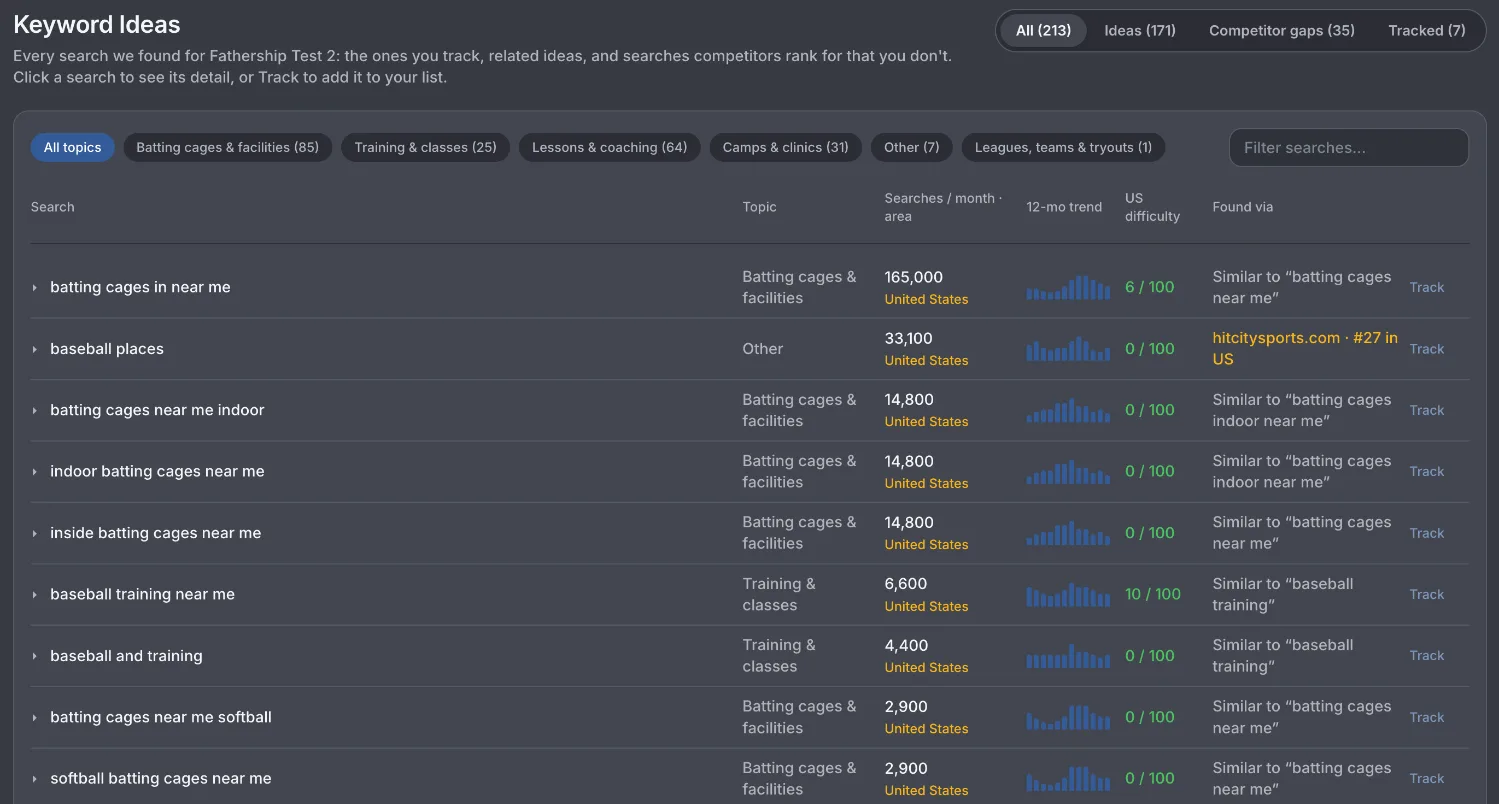
The Marketing module has a new Keyword Ideas tab next to Local Traffic. It lists the searches you already track, fresh ideas from Google, and terms your competitors rank for that you don't, so you can stop guessing what parents and athletes type into a search bar. Filter by topic, open any row to see cost per click, competition and search intent, and hit Track to add it to your list. Use the good ones in your site copy, your ads and your blog posts.
Local Traffic with search volume
Local Traffic used to show national numbers, which didn't help much when you only compete in your own town. We fixed that. Each tracked search now shows monthly searches for your city, and the row tells you which area the number covers. If Google has no city number for a term, you get the state figure with a state label on it, so nobody mistakes one for the other. Every search also shows cost per click, a top-of-page bid range and a 12-month trend. It's a quick way to see where demand is before you decide where to spend.

Citations
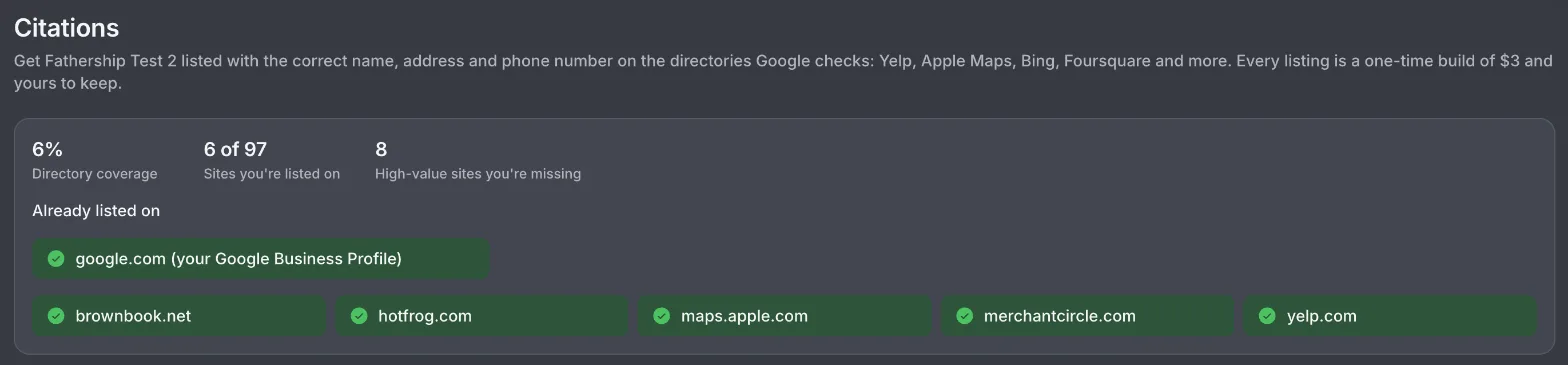
Citations are the business listings that tell search engines your facility is real and where it is. The new Citations tab scans your Google listing and shows a coverage score (for example, 6 of 97 sites). It marks each directory you are missing as high, medium or low value, and you can hide the low ones.
Listings cost $3 per site plus card processing, charged to the card you have saved. Before you pay, you confirm the details we will send to every site: name, address, phone, website, category, description and hours. Read them twice. Changes you make later are not pushed to listings that are already built, so fixing a mistake means buying that listing again.
Ads
The Ads screen now follows each click past the landing page. Every ad that sent traffic in the last 30 days gets a journey chart showing where people landed, where they went next, and whether they purchased, signed up, submitted a lead or left. Six headline numbers (clicks, converted visitors, leads, sign-ups, purchases and revenue) sit above a daily chart of clicks against conversions, and when a visitor signs up or buys, we match them to the real account or checkout.
Two things to set up first
Events and scheduling
Build many events from one prompt
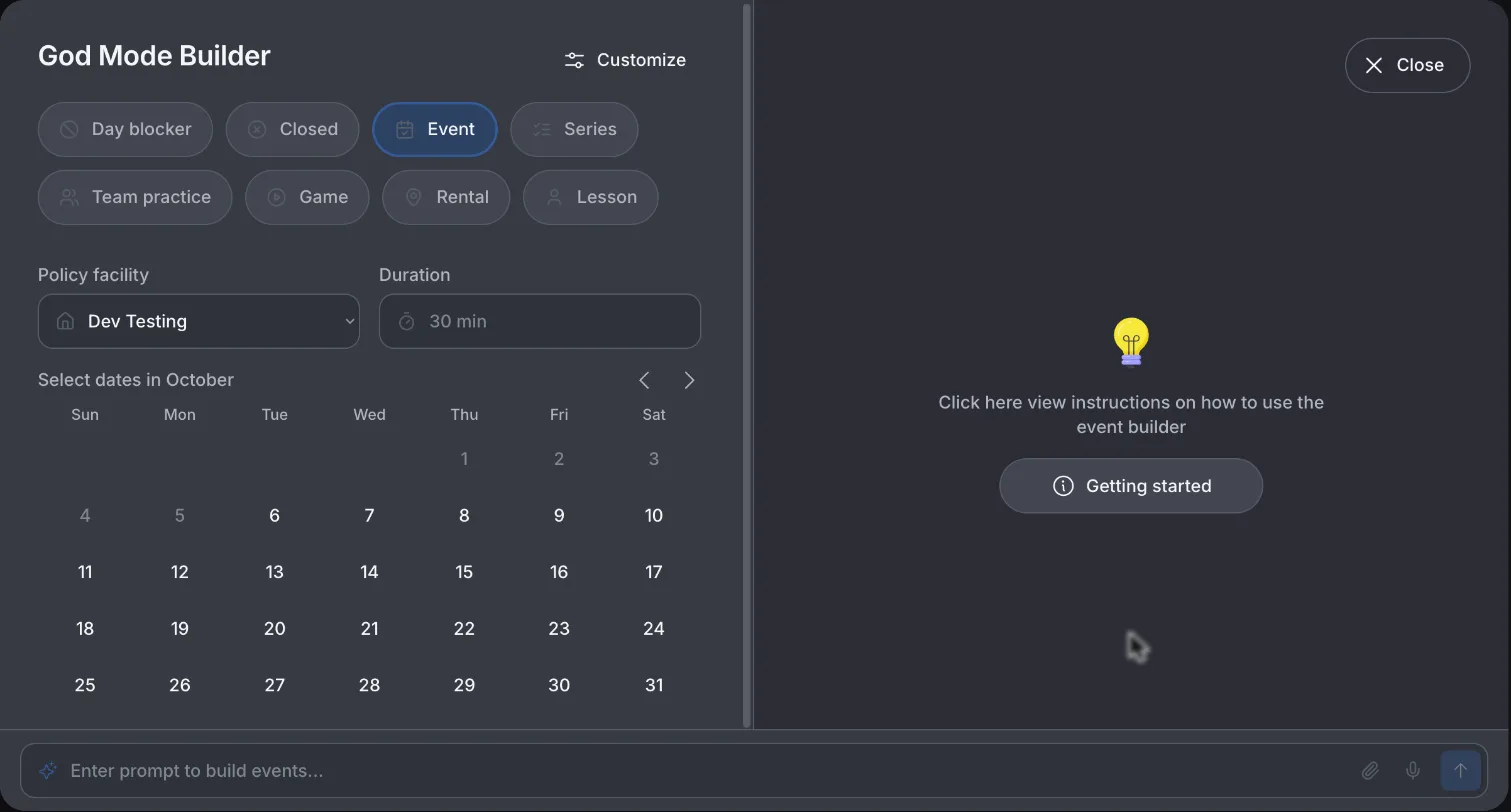
The AI Event Builder can now create a whole schedule from a single request. Ask for “3 games next week and 2 practices between them” and you get all five, in order, on sensible dates and times. You can also attach Excel, CSV, Word, PDF and text files (images still work too), so a season schedule someone already built in a spreadsheet goes straight in without retyping. Everything lands as a draft, so you can check it before anything publishes.
Talk instead of type
The AI Event Builder and the Team Builder both have a microphone icon in the prompt bar. Click it, say what you want, and your words fill in the prompt as you speak. Nothing sends until you press Send, so you can fix the wording first. It works in Chrome, Edge and Safari. In browsers like Firefox you will see a short message and can keep typing as usual. Your browser asks for microphone permission the first time.
Event cloner
Pick your dates and times first, set your options for trainers, features and athletes, then press one “Clone to X dates/times” button to create every copy at once. Before, each click on a date made a copy on the spot, so turning on “clone with athletes” after picking dates gave you copies with no athletes. Now nothing is created until you press the button.
A Create Event builder you can customize
The Simple and Advanced toggle is gone. It kept flipping back to Simple halfway through a build, so we replaced it with a Customize button at the top of the builder. Switch on only the optional inputs you use, like age limits, waivers, add-ons, coupons or alternate pricing, and the builder keeps that setup every time you open it, on any device. The basics (event type, facility, date, time, duration, capacity, trainers, features and price) always show. When you edit an existing event, anything that already has a value stays visible even if you have it switched off.
Smaller scheduling upgrades
- Create in place. The Event Builder and Membership Builder have “+” shortcuts that let you create a trainer, waiver, question or add-on without leaving, then land back in what you were building with everything still filled in.
- Delete canceled events. Canceled events can be permanently deleted from the canceled view, which is handy for mistakes and tests. Deleting is permanent, and a real cancellation should stay canceled so families can still see it.
- Waiting lists move faster. Everyone on the list gets a text and an email with a registration link as soon as a spot opens, all at the same time, first come, first served.
- Typo-tolerant client search. Client search in the Event Builder uses the same search as the rest of the app, so a misspelled name still finds the person.
Teams, trainers and members
Customizable Users list
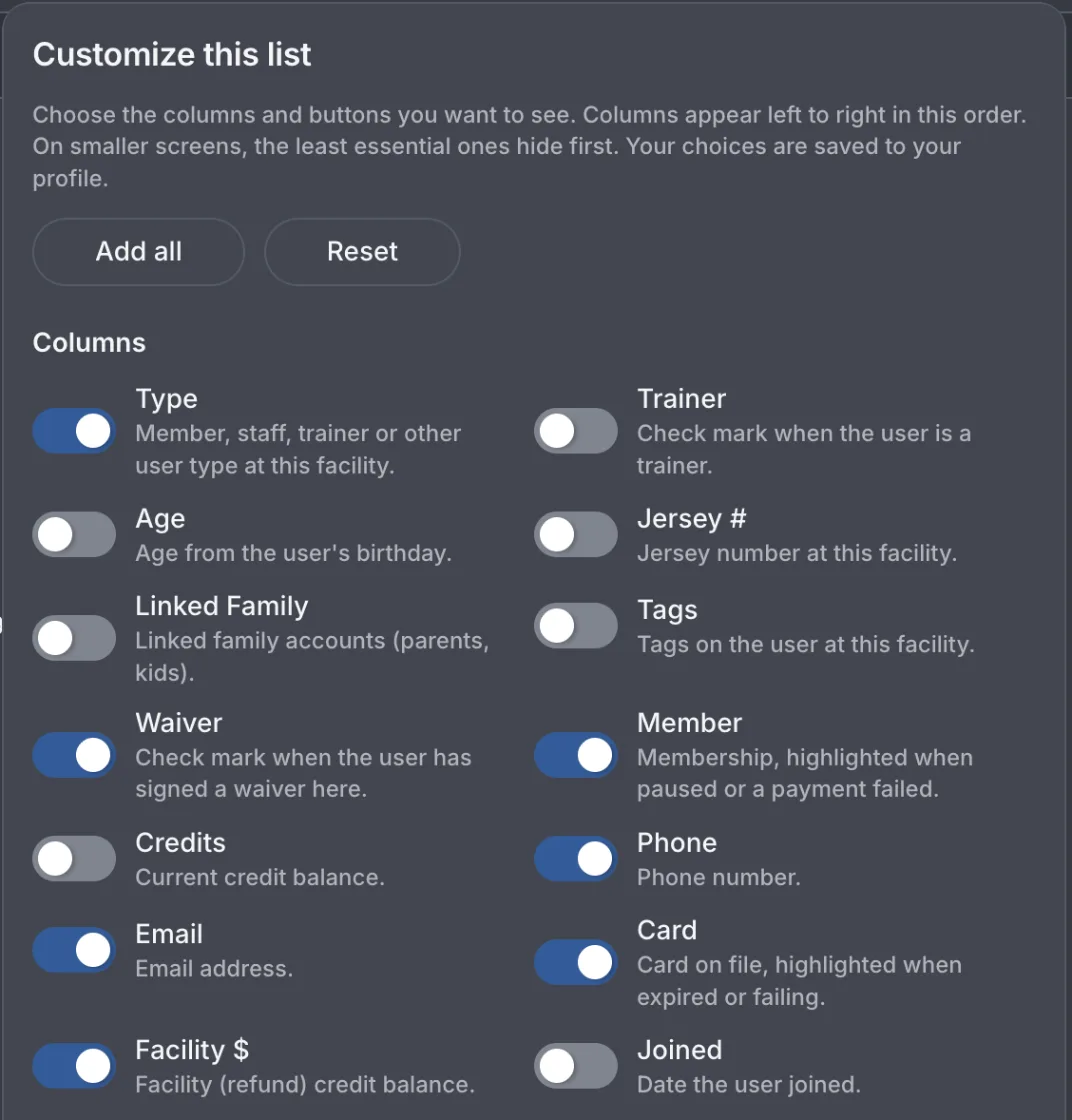
The Users list has a Customize icon next to the filter button. Switch Columns and Action buttons on or off, and add optional columns for Trainer, Age, Jersey #, Linked Family, Tags and Waiver. Click Name, Age, Phone or Joined to sort, and the list remembers your last sort.
Problem accounts stand out too: a red pill for a failed or past-due membership, an amber pill for a paused one, and a red pill for an invalid or expired card. Spotting a missing waiver or a particular tag is now a glance down a column.
Customizable Team Builder
Same idea as the event builder. The Simple and Advanced toggle is replaced by a Customize button with on and off switches grouped under Team details, Registration and Invites, and your setup saves to your account. Tags, Coaches and Admin, Contracts and Questions stay on by default, so nobody loses anything. Extras like required membership, target revenue and invite expiration stay off until you want them. It takes voice prompts too, as covered above.
Trainers manage more of their own work
Trainers now see a Trainer page preview on their Profile with their photo, name, skills and bio, plus a copy-link button and an edit button. Edit opens the same Update trainer popup admins use, so trainers can change their own bio, photo, skill categories, lesson durations and pricing without waiting on an admin. Trainer priority order stays admin only.
Families and contracts
- Workouts for linked athletes. Parents can complete a workout on behalf of a linked athlete who can't log in, and it counts as completed.
- Contracts stay on the profile. Contracts signed during team registration now show up on the athlete's profile every time, so you can pull the signed PDF when you need it. Before, one could go missing.
- Waivers at a new facility. Returning users are prompted to review and sign any facility waivers they haven't signed when they sign in at a new facility, and duplicate signatures are prevented.
- Placeholder phone numbers. Admins can use a placeholder number for athletes who don't have one.
Mobile app
Version 1.6.0 is rolling out to both app stores. It brings navigation fixes for the tab bar and menu, a password reset option in Settings, and a persistent indicator of which account and facility you are viewing. Staff can pause, resume and change a client's membership from the app, and trainers can manage their own lessons, packages and memberships there too.
Settings and admin
Settings redesign
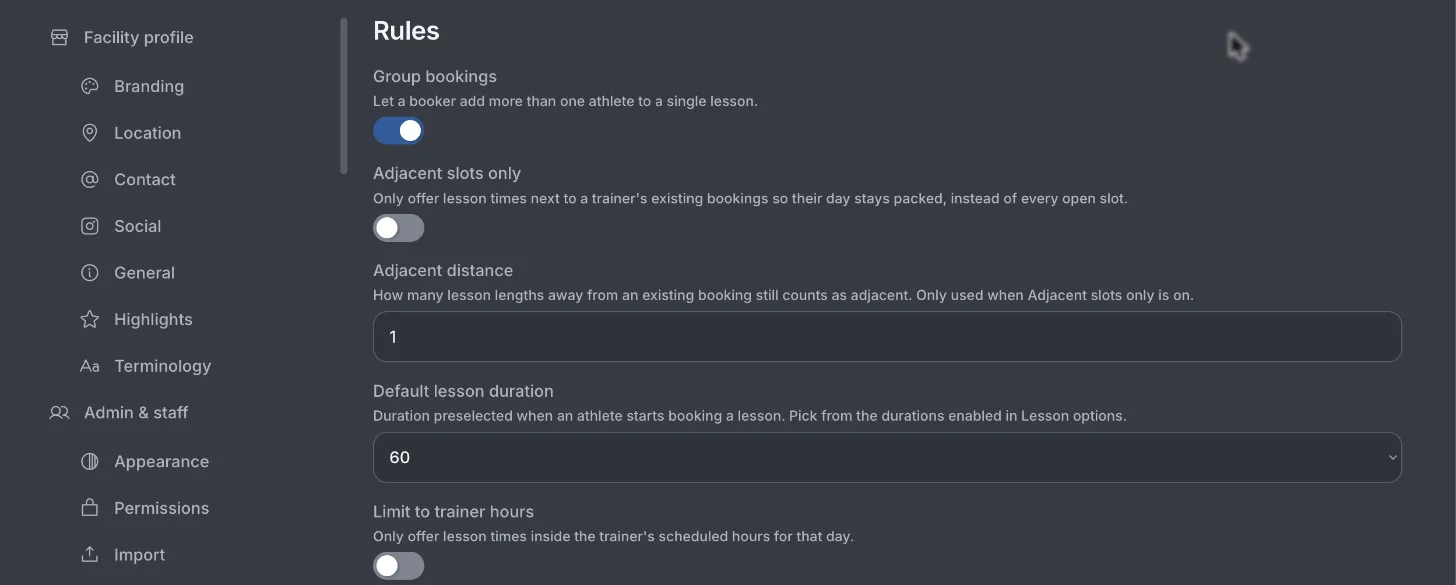
The side menu is grouped, running from Facility profile down to Integrations, and it has search, so you can type what you are after instead of scrolling for it. Every option sits on its own full-width row, and the whole thing works on a phone. The header now shows your complete facility name instead of cutting it off.
Customize is account-wide now
Simpler dashboard cards
The dashboard has simpler metric cards on the Transactions, Users and Memberships tabs. Each card carries a green or red arrow against the previous period, and the side panel is gone. The comparison follows the date range you select rather than always measuring against yesterday.
A few smaller changes
- The side nav collapses when you want the room.
- Primary buttons show a loading state while they work, so you can tell a click registered.
- User search in the Messages popup clears between searches and shows nothing for names that don't exist, instead of leaving the last result on screen.
- Articles attached to a location open on the right location.
Bug fixes and smaller improvements
- AI builders and scheduling. Daylight saving time no longer shifts events by an hour. The AI stopped blocking off whole days, and a series you describe now comes out as a series instead of a pile of single events. Alternate pricing carries its session counts, and a prompt that mentions both half-day and full-day pricing builds one event rather than two. The “seriess” typo is gone (thank goodness). The Support Agent gives the right opening answer and saves your prompt. Rentals no longer show an extra slot after closing time, custom rental names stick, and admins get the initial lesson signup text.
- Display. Settings listed two Profile entries, and that is down to one. Overlapping buttons and a nested scroll in the Settings nav are fixed, “Duplicate” no longer appears twice on the event categories screen, and the download success message reads correctly.
- People and memberships. Team invite links could create duplicate spots, so there is now a warning, and we cleaned up 85 duplicate spots across 40 accounts. Merging duplicate users now carries over waivers, bookings, refunds, family links, membership consents and door PINs, which used to get left behind.
- Access and security. Baseline staff accounts and customer accounts are now separate user types. We closed a security gap on an internal configuration page. Rental access grants work as expected, and door access is cleared when you delete an event, so nobody keeps a PIN to something that no longer exists.
- Mobile app and workouts. The client profile contact card works. The Manage Membership actions work and ask for confirmation first. The pause date picker defaults to today, and the account you selected no longer reverts on its own. Completed programming workouts show as complete, and the stat instructions are updated.
Want help putting this to work?
Most of what is listed here is already live in your account. If you only have time for a few things, start with these. They change the most about how a normal week feels.
- Open Marketing and try the new Keyword Ideas and Citations tabs, then check the local search volume on Local Traffic.
- Press Customize in the Create Event builder, the Team Builder and the Users list, and switch off everything you never use.
- Open Settings and search for the setting you want instead of scrolling.
If you want a walkthrough, or help choosing which columns belong in your Users list, reach out to your account manager or Baseline support through the help widget in the bottom right corner and we will set it up with you. Not on Baseline yet? See how the Marketing module and the AI Event Builder fit into the rest of the platform, or book a demo.
Less clicking. More coaching.
Baseline is the all-in-one operating system for sports facilities, clubs, and travel teams — scheduling, payments, programming, and team management in one platform.
Keep reading

What Successful New Sports Facilities Do Differently
A data-backed operator playbook from Baseline cohort research: the four operational levers that move the needle in a facility's first year — and the four things you can stop worrying about.
Why Families Book Lessons — and Why They Don't: A Year Inside 268,000 Booking Sessions
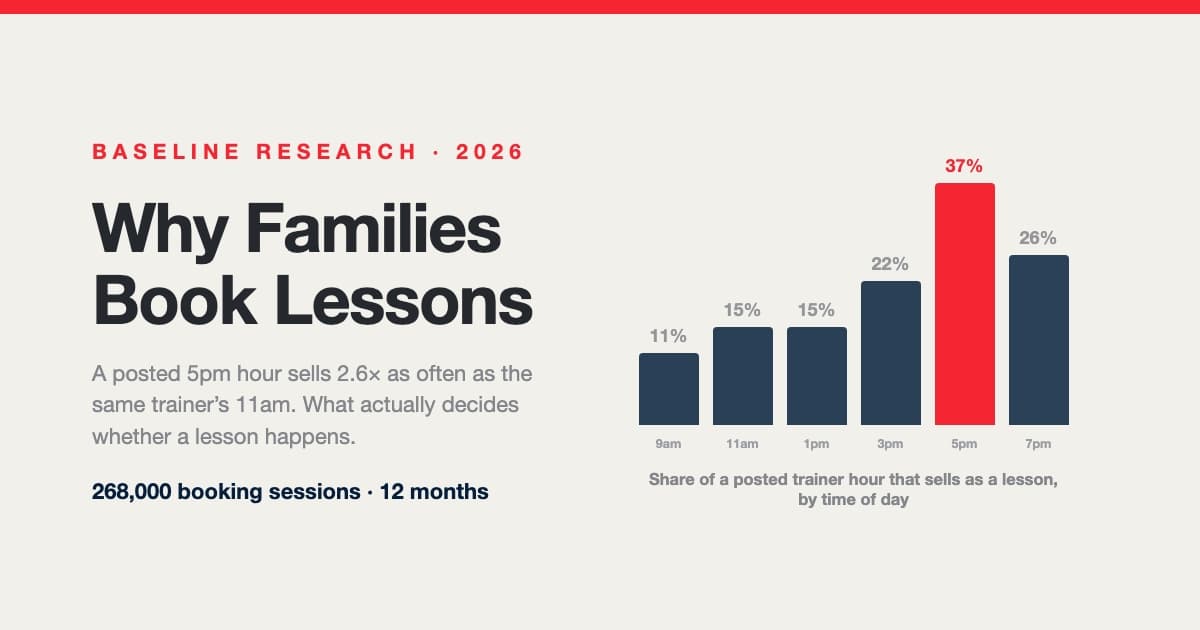
A posted 5pm hour sells nearly three times as often as the same trainer's 11am. Across 268,000 booking sessions, 29,812 families and 107,000 posted trainer shifts, what decides whether a lesson happens isn't price, sport or lesson length — it's which hours are on the calendar and how late families go looking. Including a measured answer to the question every operator asks: do 15-minute intervals actually win you bookings?
The Economics of a Sports Facility: How Busy Is Busy, What a Space-Hour Is Worth, and How the Packed Facilities Got That Way
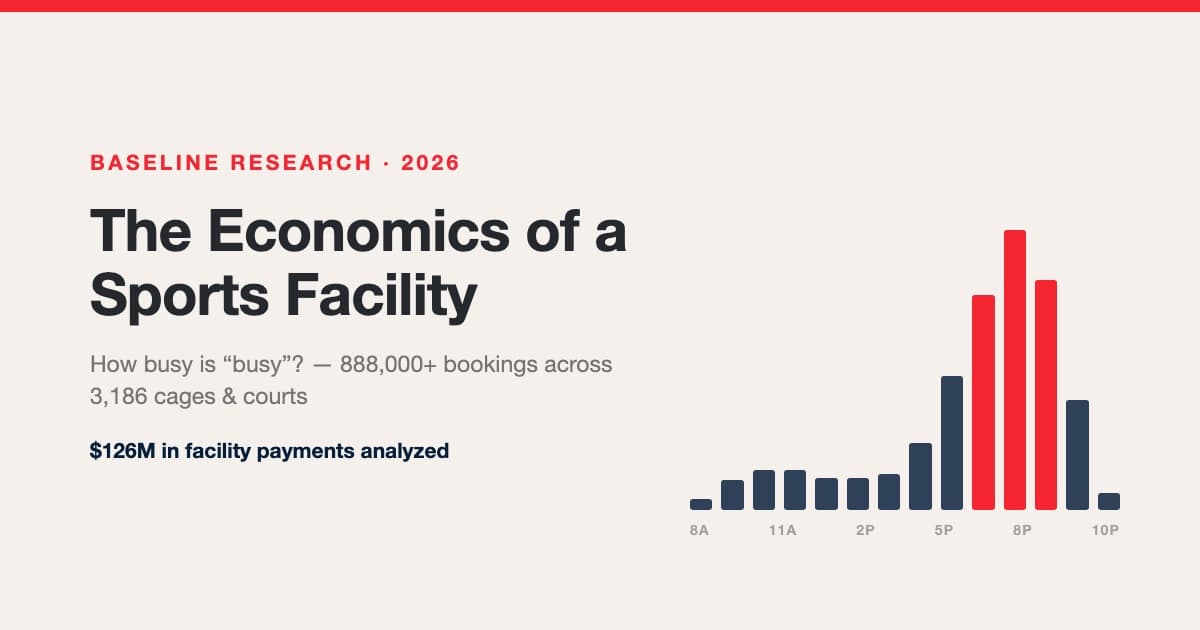
We analyzed 888,000+ bookings, 863k space-hours, and $126M in payments across hundreds of sports facilities. Real utilization benchmarks (facilities are spiky, not empty — 2 in 3 sell out prime hours while averaging ~19% occupancy), rentals vs lessons vs group economics, the true lesson margin after trainer splits, credit-pack accounting, seasonality by category, and the occupancy ladder from quiet to packed.